

Create your first product FAQ
In 5 minutes: three questions on a product page, visible on the shop. Pick a product that brings questions to your customer service, that is where a FAQ pays off most.
1. Open the FAQ tab of the product
- Catalog > Products, open the product.
- Click the FAQ tab, next to Modules.
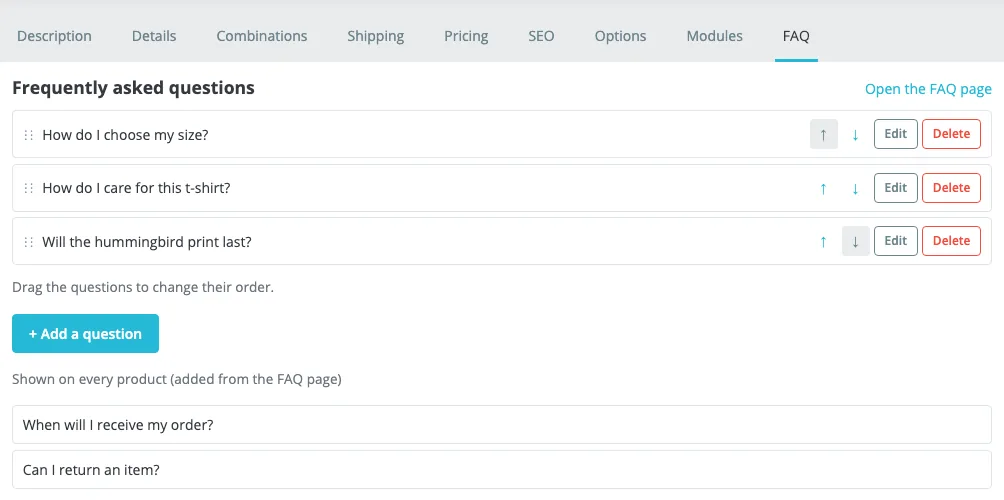
2. Add a question
- Click + Add a question.
- Write the question and the answer in the default language (marked with a star, here FR *).
- Switch to the other languages with the DE, NL, EN… tabs. A question with no translation is simply not shown in that language.
- Keep Active ticked and click Save.
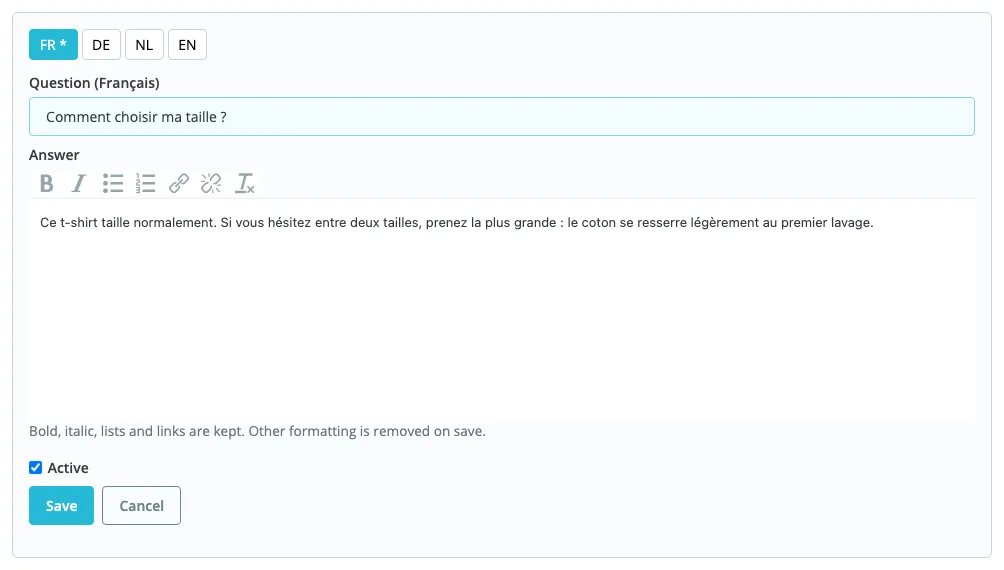
The editor toolbar keeps bold, italic, lists and links. Any other formatting (colors, sizes, tables) is removed on save, so the FAQ follows your theme.
Tips for a good FAQ:
- Write the question the way the customer asks it (“How do I choose my size?”), not as a heading (“Size guide”). It is also what they type into Google.
- A short answer that answers in the first sentence. Add details after, if needed.
- Three to eight questions per product: beyond that, group general questions on a CMS page.
3. Put the questions in order
Drag the questions by the ⋮⋮ handle, or use the ↑ and ↓ arrows. The order is saved at once. Questions shown on every product (delivery, returns…) always come after the product’s own questions; they are managed from the central page (see Advanced uses).
4. Turn the display on
While the display is off, the back office reminds you with an orange message. When your questions are ready:
- Modules > Module Manager, find AnswerKit and click Configure.
- In the Display panel, set Show FAQs to visitors to Yes.
- Click Save.
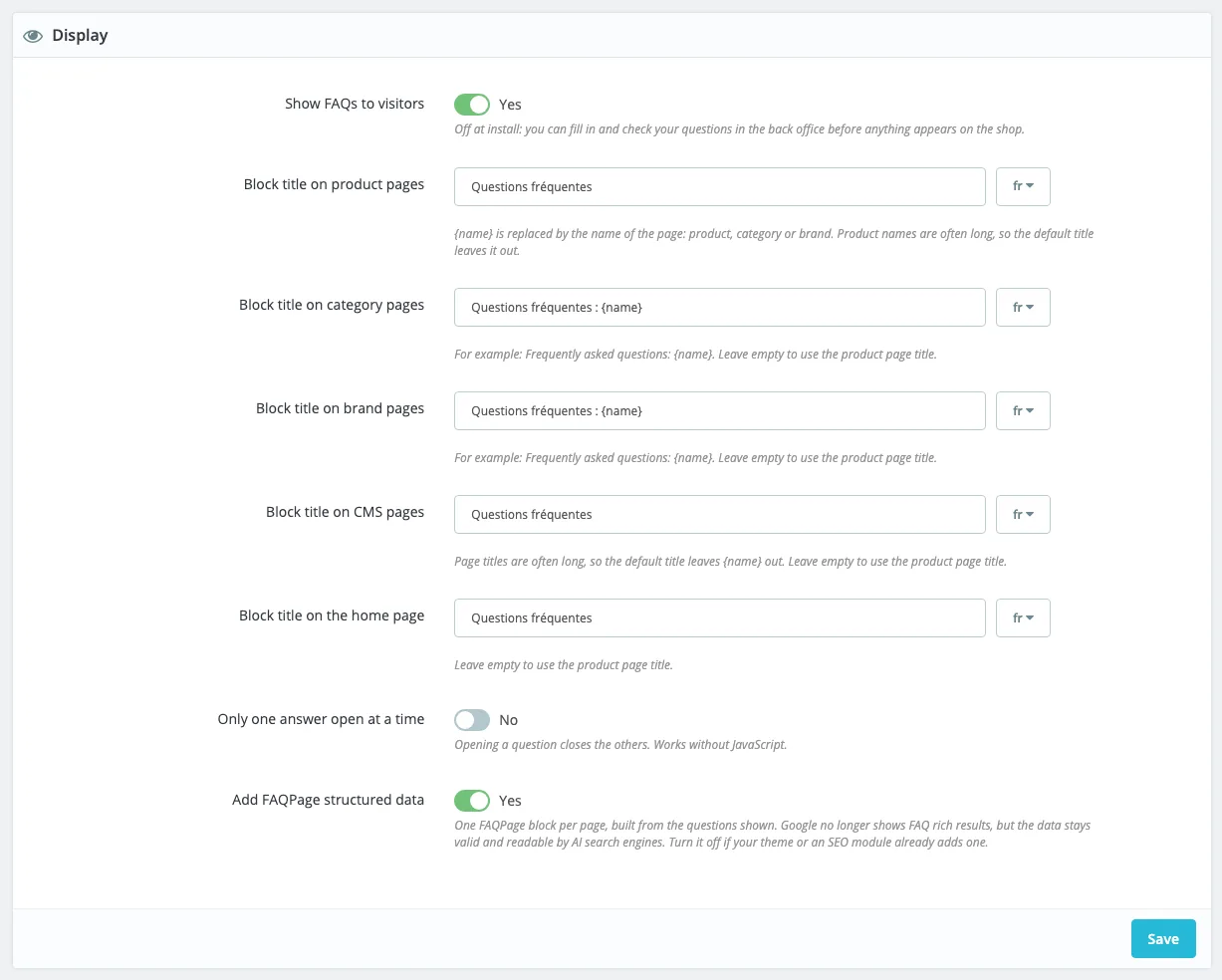
5. See the result
Open the product page on the shop. With most themes, a Frequently asked questions tab or section appears after the description:
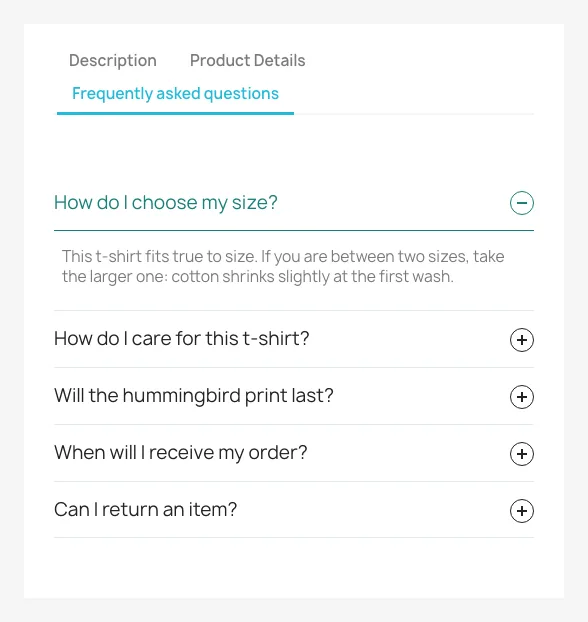
Nothing there? Clear the cache (Advanced Parameters > Performance > Clear cache) and reload the page. If the FAQ still does not show, follow the troubleshooting guide.
Next
- An answer for every product or for a whole category: Advanced uses.
- Change the location of the block or its title: Settings.
- Import dozens of questions at once: CSV import.